8 things to decide before you hand over a first phone
Each of these is easy to settle while the phone is still in the box, and hard to change once it's in their pocket.
- Where it sleeps at night. One charging spot outside the bedrooms, for every phone in the house. A cheap alarm clock takes over the phone's other job.
- When it's off on school nights. Pick the time it goes on the charger. Pediatricians suggest about an hour before bed, and kids 6 to 12 need 9 to 12 hours of sleep, so work back from wake-up time.
- Which apps it starts with. Start with what it's for and add from there. When you make their account, iOS 27 lets you start with a few essential apps and approve the rest over time.
- Who says yes to the next app. Ask to Buy sends every request to a parent's phone. Decide whether that's one parent or both.
- What it's for: calls, maps, camera, music. Name the jobs out loud. Anything past that list is a conversation.
- The plan for sleepovers and trips. Does it keep its bedtime at a friend's house, at Grandma's, on a long drive? Decide before the day comes, so nobody's negotiating at the door.
- The date you'll look at all this again. Their birthday or the end of the school year, on the calendar. As a kid shows more responsibility, the American Academy of Pediatrics says, they can gain more independence and fewer controls.
- What you'll say when you hand it over. Keep it to a minute: what it's for, where it sleeps, when it's off, and that you won't read their texts.
Sources: AAP guidance in Apple's family guide, 2026 · AAP, Your Child's First Phone, 2026 · AASM sleep recommendations, 2016 · Apple, what's new in parental controls
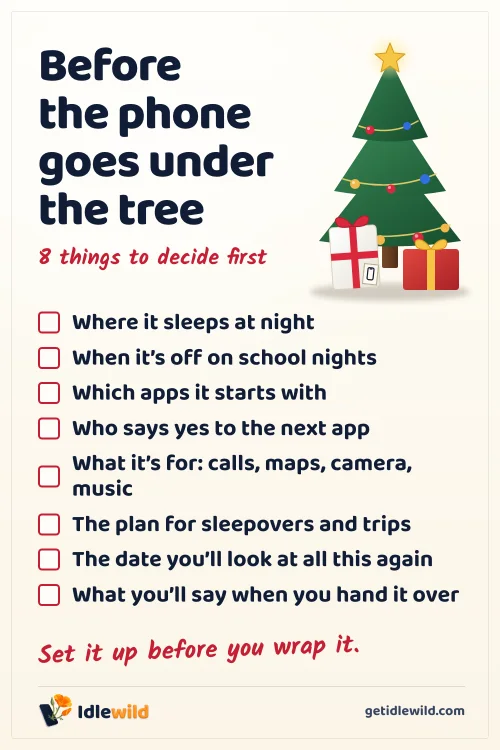
How to set up a hand-me-down iPhone for your kid in iOS 27
Do it in this order, before you wrap it. You'll need your own iPhone on iOS 27.
- Erase it. Back up the old iPhone and sign out first: Settings › your name › Sign Out. Then Settings › General › Transfer or Reset iPhone › Erase All Content and Settings. If it asks about the eSIM, decide whose plan the phone will be on first, because a deleted eSIM takes a call to the carrier to get back.
- Make them their own Apple Account. On your phone, with Family Sharing on: Settings › Family › Add Member › Create Child Account. Use their real birthday. Their age-based settings depend on it.
- Set it up with Quick Start. Turn the old iPhone on, hold your phone next to it and choose your child. Only kids under 13 show up there; for an older kid, tap Set up Without Another Device.
- Switch on the new parental controls. Update every family device to iOS 27 first. Settings › Family › View Family Devices lists the ones that need it. Then Settings › Family › Get Started.
- Lock Screen Time with its own passcode. Settings › Family › your child › Passcode & Management › Lock Screen Time Settings. Four digits they have never watched you type, different from your phone's passcode.
- Turn on Ask to Buy and Ask to Browse. Settings › Family › your child › Apps & Websites › Restrictions. Turn on Require Purchase Approval under Ask to Buy, then under Websites set Filtering to Approved Websites Only. Ask to Browse is already on for kids under 13.
- Set a Screen Time Schedule. Settings › Family › your child › Screen Time Schedule. Turn on Schedule, tap Add Schedule, then Add Time Window for school and for bedtime.
Sources, checked on Apple Support November 10, 2026: erase · sign out · Child Account · Quick Start · new parental controls · passcode · Ask to Buy · Ask to Browse · schedules
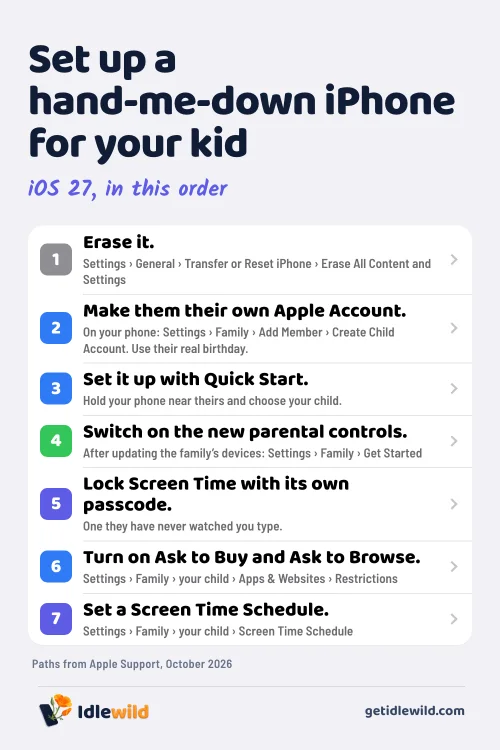
Skip the phone contract: 6 rules the phone can keep for you
A phone contract is a promise your kid has to keep at 9 p.m., at the exact moment they least want to. Move the rules you can into the phone and the house, and save the talking for the things that need it.
- One charging spot everyone can see. A shelf in the kitchen beats a promise about the bedroom. Charge yours there too.
- A schedule for school and bedtime. A Screen Time Schedule turns apps off on time without you. iOS 27 sets the day in windows like Before School, School and After School, each with the kinds of apps it allows, like Games or Entertainment.
- Autoplay off. In every app that lets you turn it off. In a home study, autoplay made preschoolers watch longer and stick to their own stopping plans less.
- New apps get a yes first. Ask to Buy sends the request to your phone. Talk about the big ones before you tap approve.
- One date when something loosens. Their birthday works. Tell them in advance what opens up, like a later bedtime or one new app.
- Their messages stay theirs. Say it out loud, so they know where the line is. In a 2026 study of 152 kids aged 10 to 14, most rejected parents secretly checking on them.
Keep one page for what needs a conversation, like what they do when something online upsets them.
Sources: Hiniker et al., CHI 2018 · AAP guidance in Apple's family guide, 2026 · Gingo and Eskine, Journal of Adolescence, 2026 · Apple, schedules
What age should a kid get a first phone?
There's no right age. The American Academy of Pediatrics says it depends on the kid: their impulse control, what they actually need a phone for, and whether a flip phone or a watch would do the job.
Most kids have one by 11. In Common Sense Media's 2026 survey, 47% of 10-year-olds and 57% of 11-year-olds had their own smartphone, while 68% of parents in a 2025 Pew survey said a kid should be at least 12.
And if you decide yours isn't ready yet, the AAP says that's OK too.
Sources: AAP, Your Child's First Phone, 2026 · Common Sense Media, 2026 · Pew Research Center, 2025
The one rule you can't set in Settings
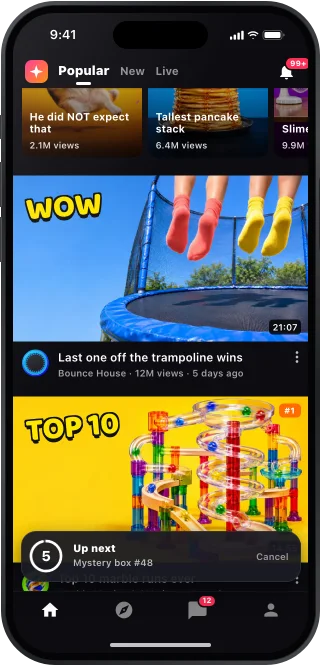
Pediatricians say to turn off autoplay and infinite scrolling where possible. On most video and social apps, the endless feed has no off switch.
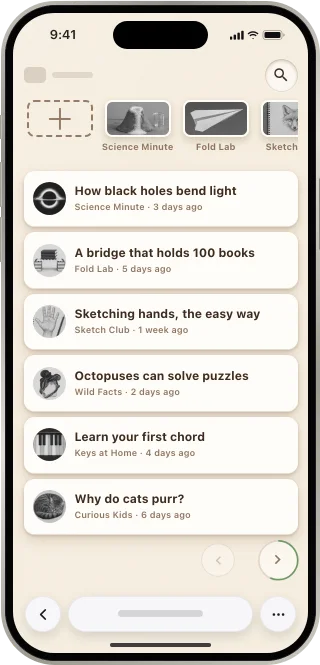
Idlewild is an iPhone and iPad app we're building to give it one. Your kid keeps their videos and friends, every page ends, nothing plays on its own, and as they grow, you decide how much opens up.
 Idlewild